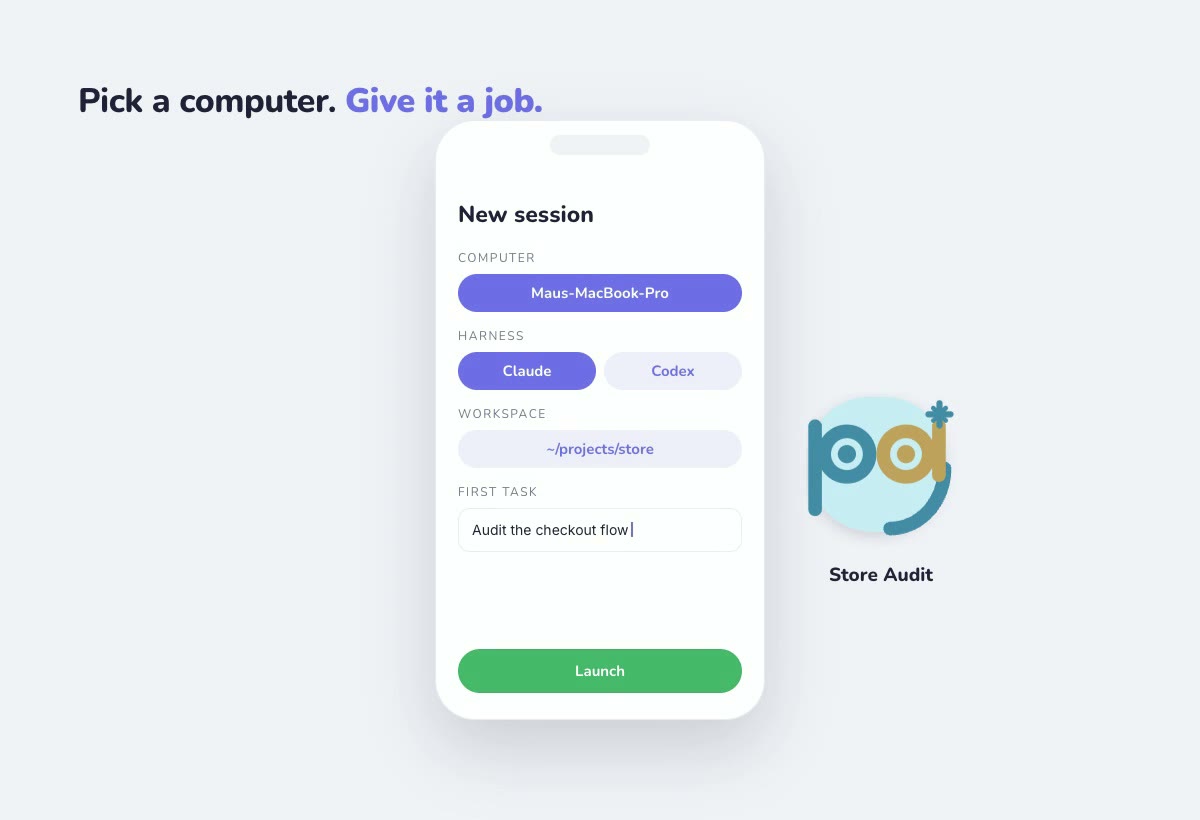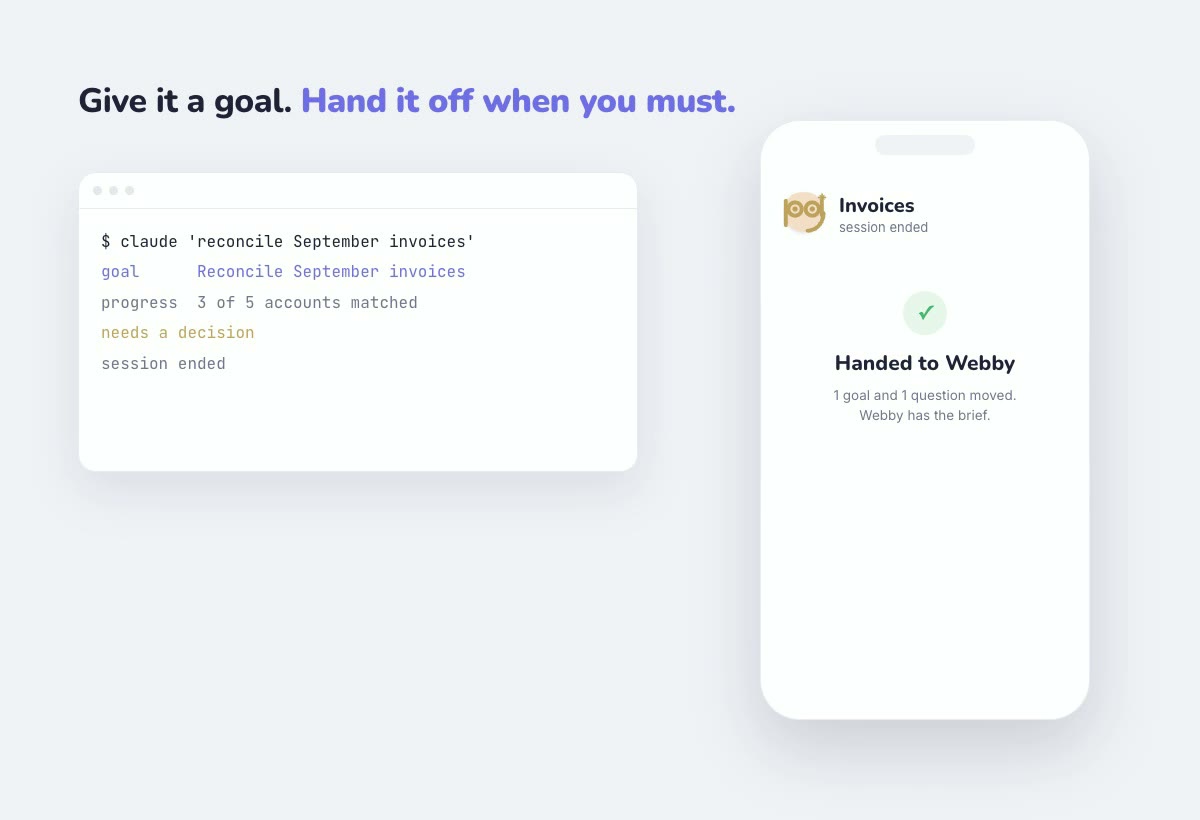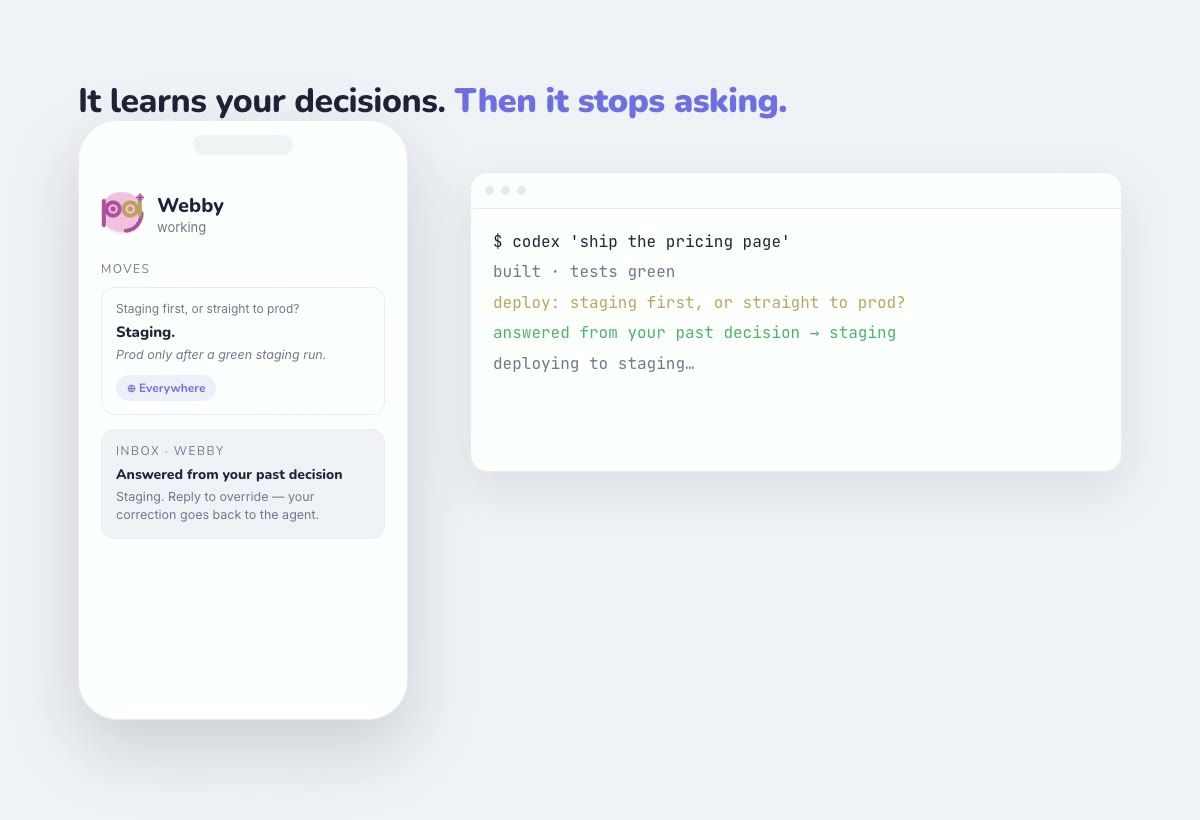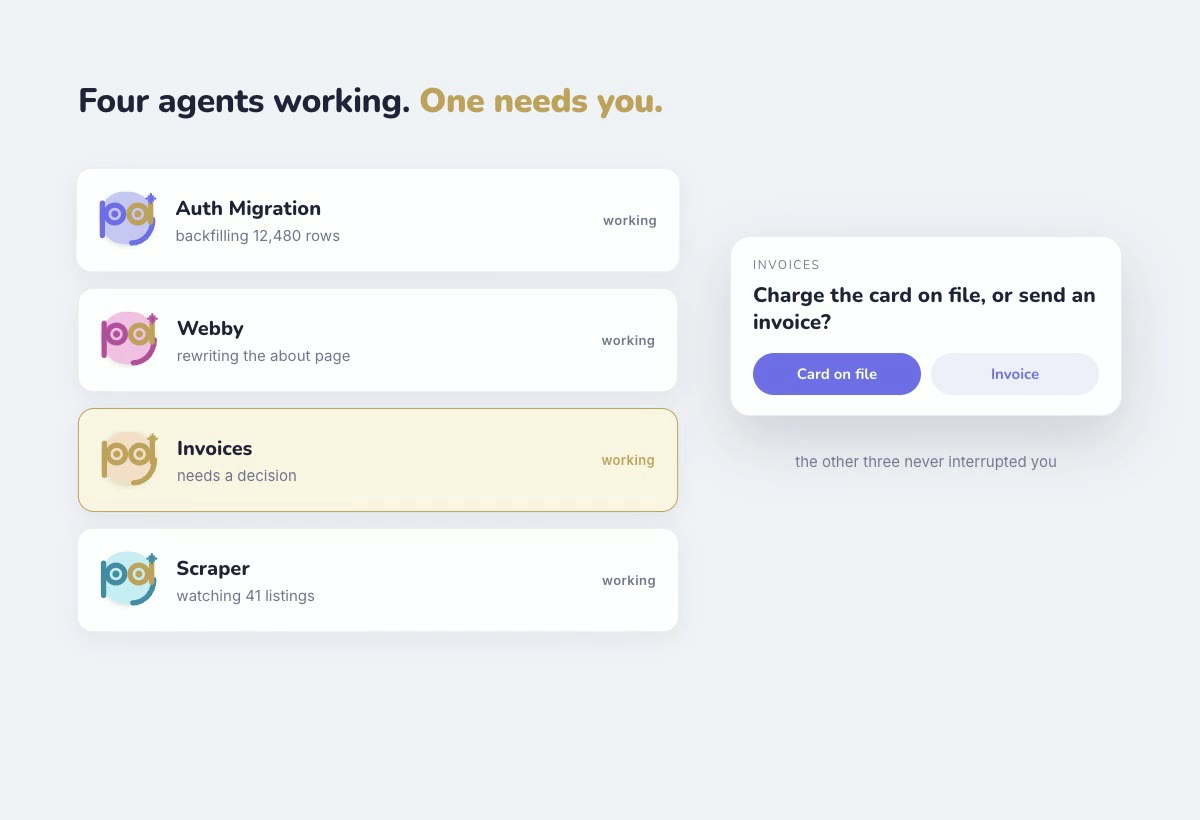
While you're away
Your desk was never the point.
Hand off the work and go live your life. Your agents run in your absence — nothing stalls waiting on you, nothing needs a human watching a terminal. You left the chair; the work didn't stop.
And you stay reachable without a screen. When something's worth your attention, it comes to you — by voice, hands-free, wherever you happen to be.
When it's worth it
When it counts, it calls.
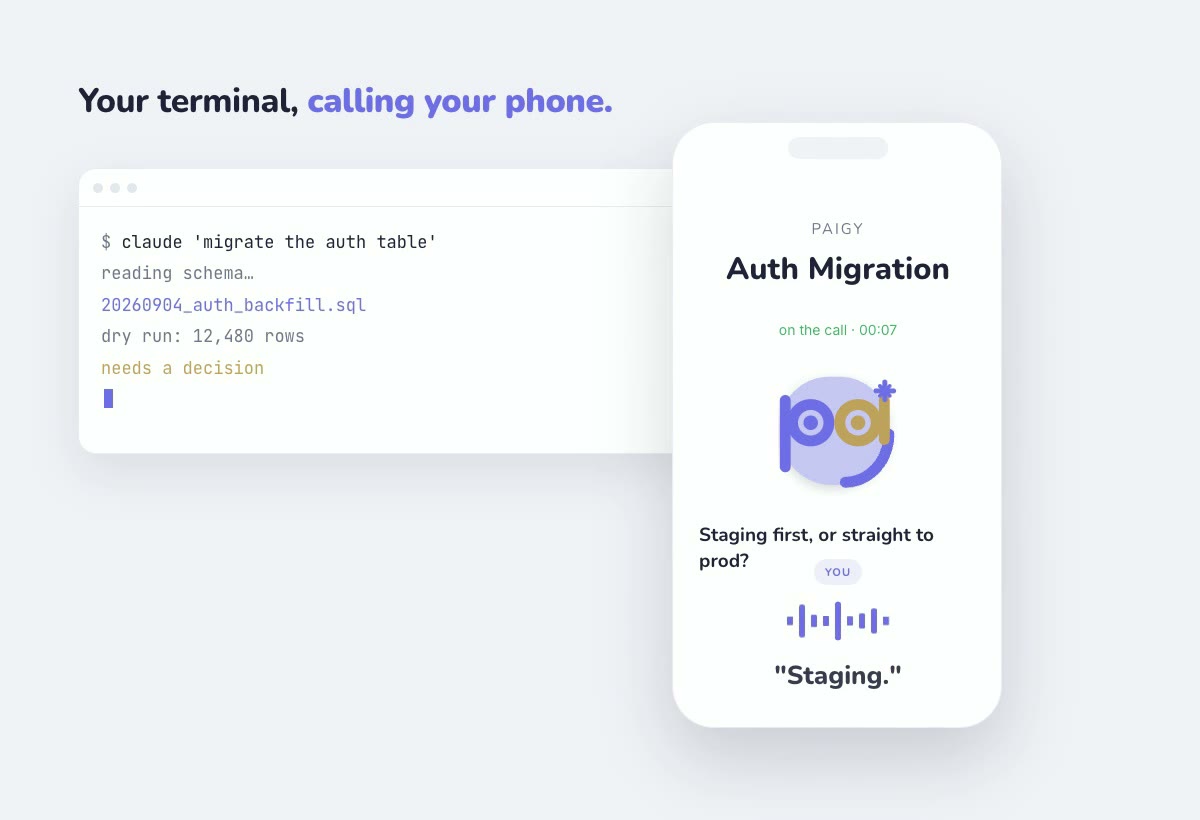
A decision can't wait. A job just finished. Your agent reaches you the way you can answer from anywhere — a native incoming call. Easy to take, easy to dismiss. Nothing interrupts you that isn't worth it.
Calls, not nags
Requests arrive as native incoming calls on your lock screen — even with the app closed. Dismiss one and it backs off — you can configure how aggressively.
- Nowit rings
- 10 mintries again
- 30 minonce more
- 2 hrlast try
- Thenit stops
Hands-free, by voice
Paigy reads the request aloud; you answer out loud and get back to whatever you were doing. When a choice is visual, it shows you the image or design to pick from.
Private by design
Paigy never listens in the background — audio is processed only during a call you choose to answer. A constraint, not a feature.
The call is the mechanism — not the habit.
No new app, no new habit. It rings like a real phone call, and only when it has to.
And you decide how engaged to be — change it whenever. Let the agent judge what's worth a call, make every notification ring, or go fully Silent so nothing does and it all waits in your inbox until you're ready.
Switch any time, from anywhere — even mid-task.
How it works
Four steps, then go.
Pair an agent
Add the Paigy integration to your agent and approve it — a quick one-time step.
Tell it to reach you
Ask your agents to call when they need a decision, or to tell you it's done.
Go live your life
Leave the desk. Your agents keep working while you're away.
Answer, or don't
Decide by voice when it calls — or dismiss it and handle it later.
Yours to control
Nothing reaches you that you didn't allow.
- Connect or disconnect any agent at any time.
- Choose what can ring you — ring, banner, or stay quiet in your inbox.
- Private to you — your messages and transcripts are never shared between users.
- Erase anytime — a single notification, or your entire account and all its data.
Get started
Install in 2 minutes.
Pick your agent, run two commands, and pair your phone. Two minutes once — hands-free after that.
The easiest path is the Paigy plugin for Claude Code — it adds the MCP server and prompts you to pair on first run.
-
1
Add the Paigy marketplace
/plugin marketplace add paigy-ai/mcp -
2
Install the plugin
/plugin install paigy -
3
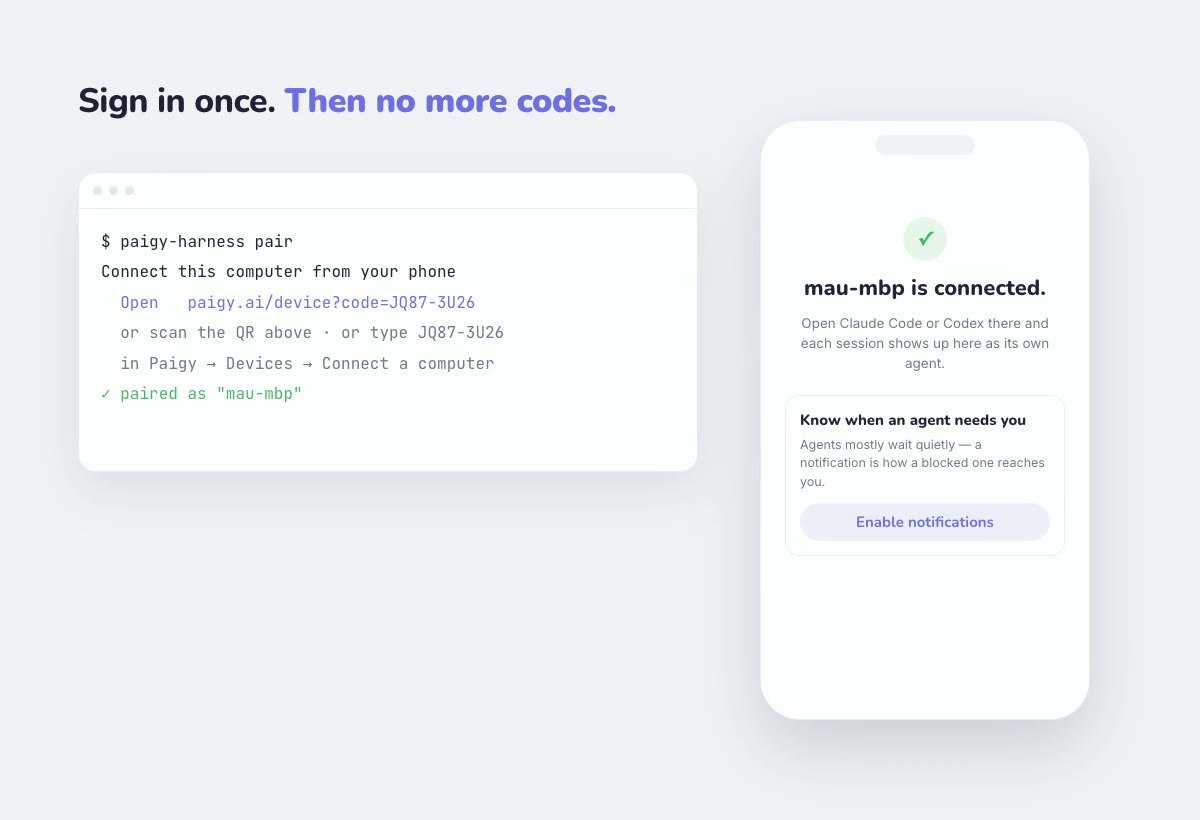
Pair your phone
Claude prompts you to pair on first run — approve it on your phone. Sign in at paigy.ai (or open the app) and your agents can start reaching you by text or voice.
-
4
Optional: have your agent nudge you if you go quiet
Paste this into Claude Code and it re-pings you through Paigy whenever you haven't replied to its question — so a wait never quietly stalls.
/loop 15m If I haven't answered your question, notify me again via Paigy
Prefer a manual MCP setup?
-
1
Add the MCP server
claude mcp add paigy -s user -- npx -y @paigy/mcp@latest -
2
Pair your device
npx -y -p @paigy/mcp@latest paigy-mcp-onboard
Add Paigy to Codex, then pair your phone once. Codex can call or notify you whenever it genuinely needs input.
-
1
Add the Paigy marketplace
codex plugin marketplace add paigy-ai/mcp --ref main -
2
Install the Paigy plugin
codex plugin add paigy@paigy-ai -
3
Pair your phone
npx -y -p @paigy/mcp@latest paigy-mcp-onboardApprove on your phone, then start a new Codex session to use Paigy. Sign in at paigy.ai to start receiving messages.
Add Paigy to Google Antigravity — same standard MCP server, same two minutes.
-
1
Run pairing and auto-configuration
npx -y -p @paigy/mcp@latest paigy-mcp-onboardRun this in your terminal. It will pair your phone and automatically register the MCP server in your Antigravity configuration. Approve on your phone, then sign in at paigy.ai to start receiving messages.
Paigy is a standard MCP server — no Claude-specific code anywhere, verified over the raw protocol with a non-Claude client. It works with any MCP-compatible tool, including local-model setups: Cline, Continue.dev, Zed, Goose, mcphost, and anything running against Ollama, LM Studio, or llama.cpp.
-
1
Add this to your client's MCP config
Most GUI clients (Cline, Continue, Zed…) take this as JSON in their MCP settings — Cline's is
cline_mcp_settings.json, Continue's is~/.continue/config.json. CLI clients that support the standard MCP JSON format accept it directly too.{ "mcpServers": { "paigy": { "command": "npx", "args": ["-y", "@paigy/mcp@latest"], "env": { "PAIGY_AGENT": "local" } } } } -
2
Pair your phone
npx -y -p @paigy/mcp@latest paigy-mcp-onboardApprove on your phone, then sign in at paigy.ai to start receiving messages.
Heads-up: the tool descriptions ask your agent to pick between a few answer shapes (confirm, options, free text) based on context — Claude follows this reliably; smaller local models may be less consistent about it. Free text always works as a fallback.